🔌 Configure a Mennekes charge point
Mennekes charge points (Amtron Professional) are configured from their embedded web interface, opened in a browser. This page lists the fields to fill in so that the charge point connects to Fuzz using OCPP 1.6 JSON. The general rules are in OCPP configuration of charge points.
✅ Prerequisites for a Mennekes charge point
- A PC connected to the same network as the charge point (Ethernet or Wi-Fi).
- The IP address of the charge point (visible in your router or by scanning the network).
- The password of the charge point's
operatoraccount: it is different for each charge point and is requested from the charge point distributor. - In the Console, the station and its charge points created on the site.
- The OCPP URL of the site without the last part:
ws://<controller-ip>:8080/ocpp16/<siteUid>(Edge site), for examplews://192.168.1.10:8080/ocpp16/t1d1vauf. The charge point adds its identity at the end (see Charge point identity). - Up-to-date firmware, recommended before any configuration: see Mennekes software updates.
1. Enter the identity and the address of the OCPP server
- Open a browser at the address of the charge point:
http://<charge-point-ip-address>. - Log in with the user
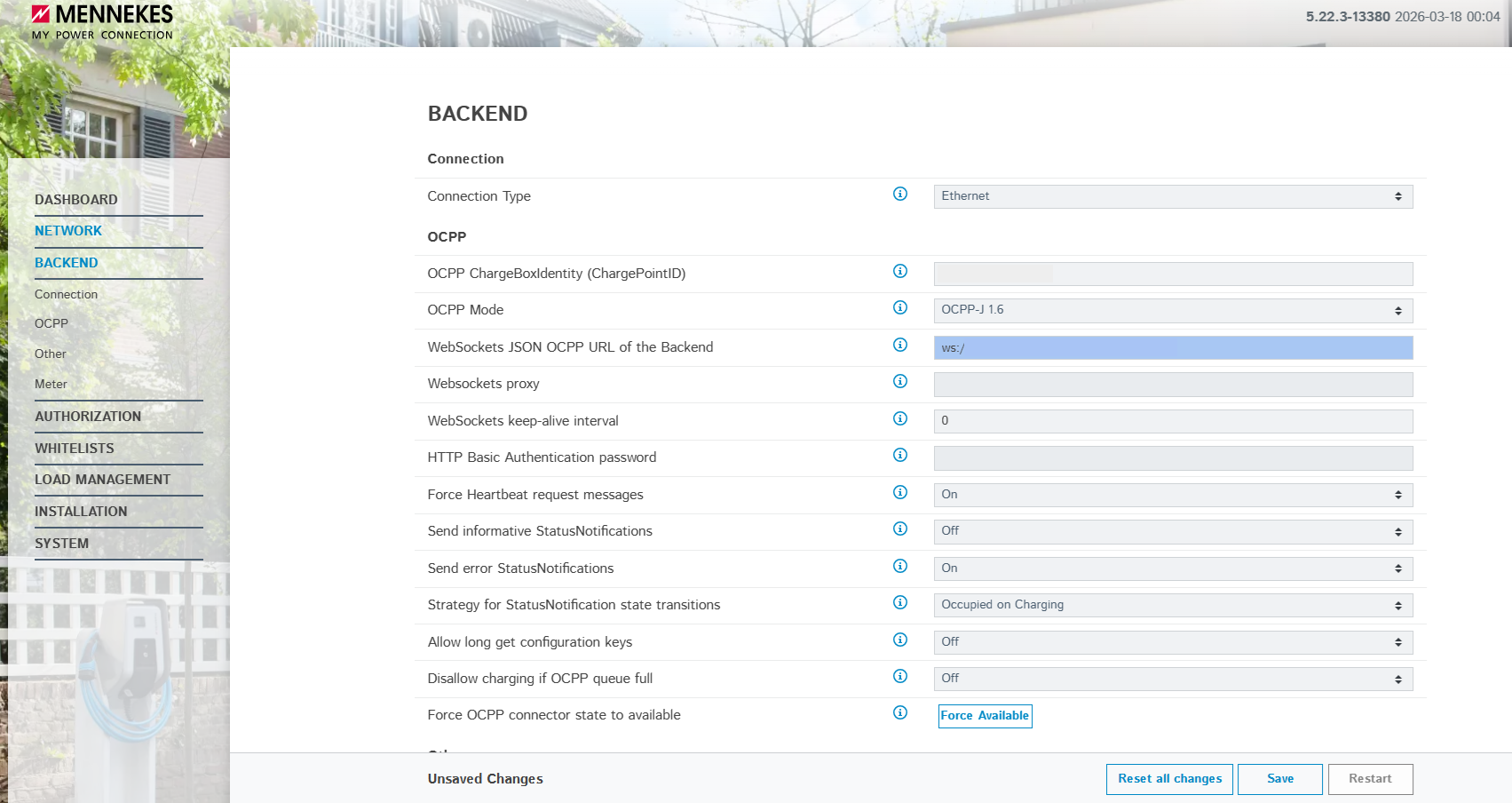
operatorand the password of the charge point. - Open the BACKEND menu, then the OCPP section, and fill in:
| Mennekes field | Value |
|---|---|
| Connection Type (Connection section) | Ethernet (or the connection mode in use) |
| OCPP ChargeBoxIdentity (ChargePointID) | The OCPP identity of the charge point, for example its number 1374201000XX. Enter the same value in the Serial number field of the station in the Fuzz Console |
| OCPP Mode | OCPP-J 1.6 |
| WebSockets JSON OCPP URL of the Backend | ws://192.168.1.10:8080/ocpp16/t1d1vauf: IP address of the controller, port 8080, ocpp16, site identifier, with no charge point identity at the end |
| Websockets proxy | Empty |
| HTTP Basic Authentication password | Empty: Fuzz does not ask for a password |
- Click Save at the bottom of the page.
⚠️ Remember to save (Save) at each step: unsaved changes are flagged by Unsaved Changes at the bottom of the page.
2. Restart the Mennekes charge point and check
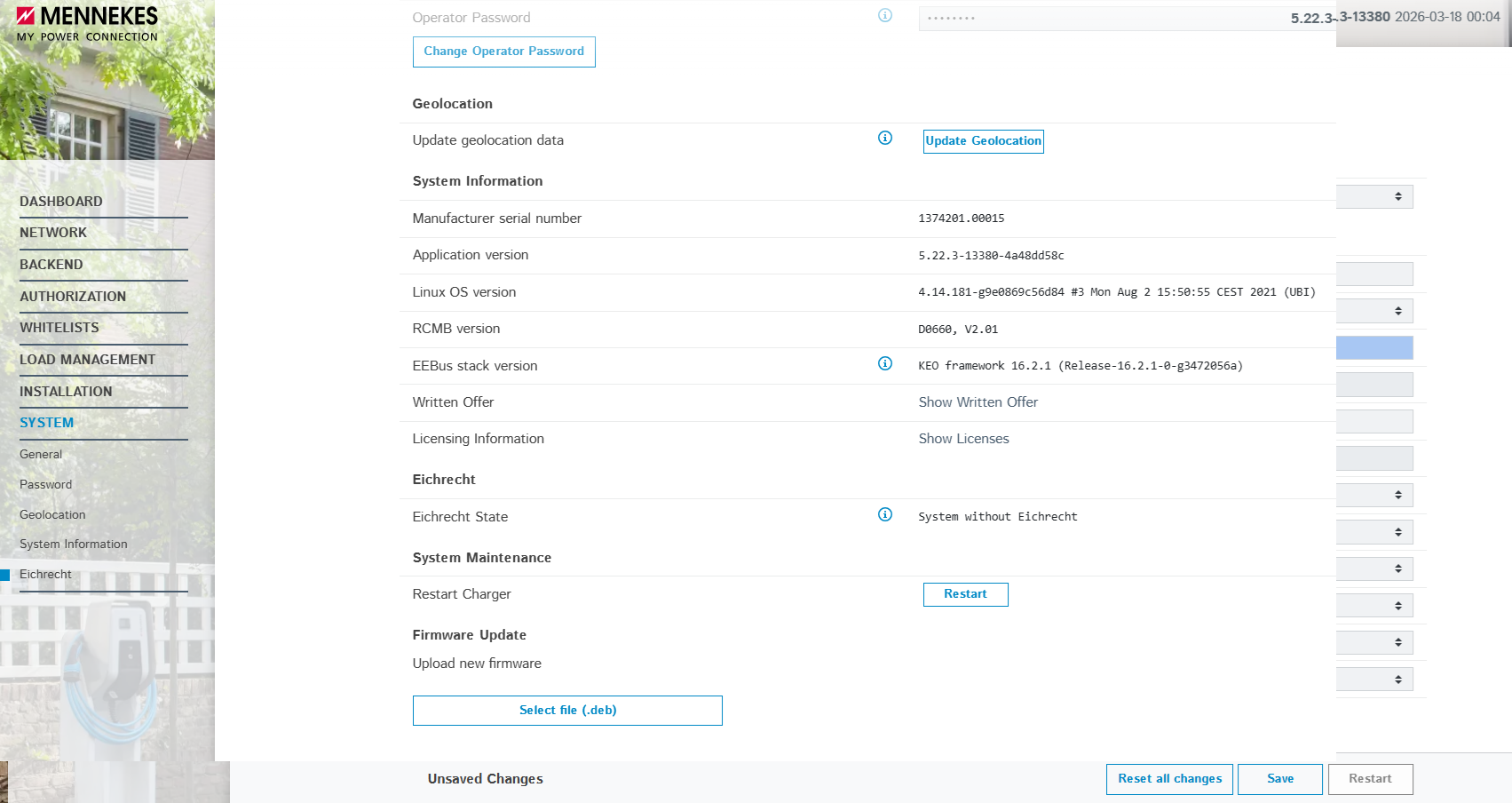
- Open the SYSTEM menu, System Maintenance section, and click Restart on the Restart Charger line (or switch the charge point circuit breaker off and on again).
- After the restart, check in the Console that the charge points go Online in Assets (see Check that the charge point is connected).
If the charge point stays offline, compare OCPP ChargeBoxIdentity with the Serial number of the station in Fuzz, and check that the URL contains ocpp16 followed by the site identifier.
The same SYSTEM page shows the Manufacturer serial number and lets you update the firmware (Firmware Update > Upload new firmware, .deb file).
3. Set a fixed IP address on the charge point to open it from the Console
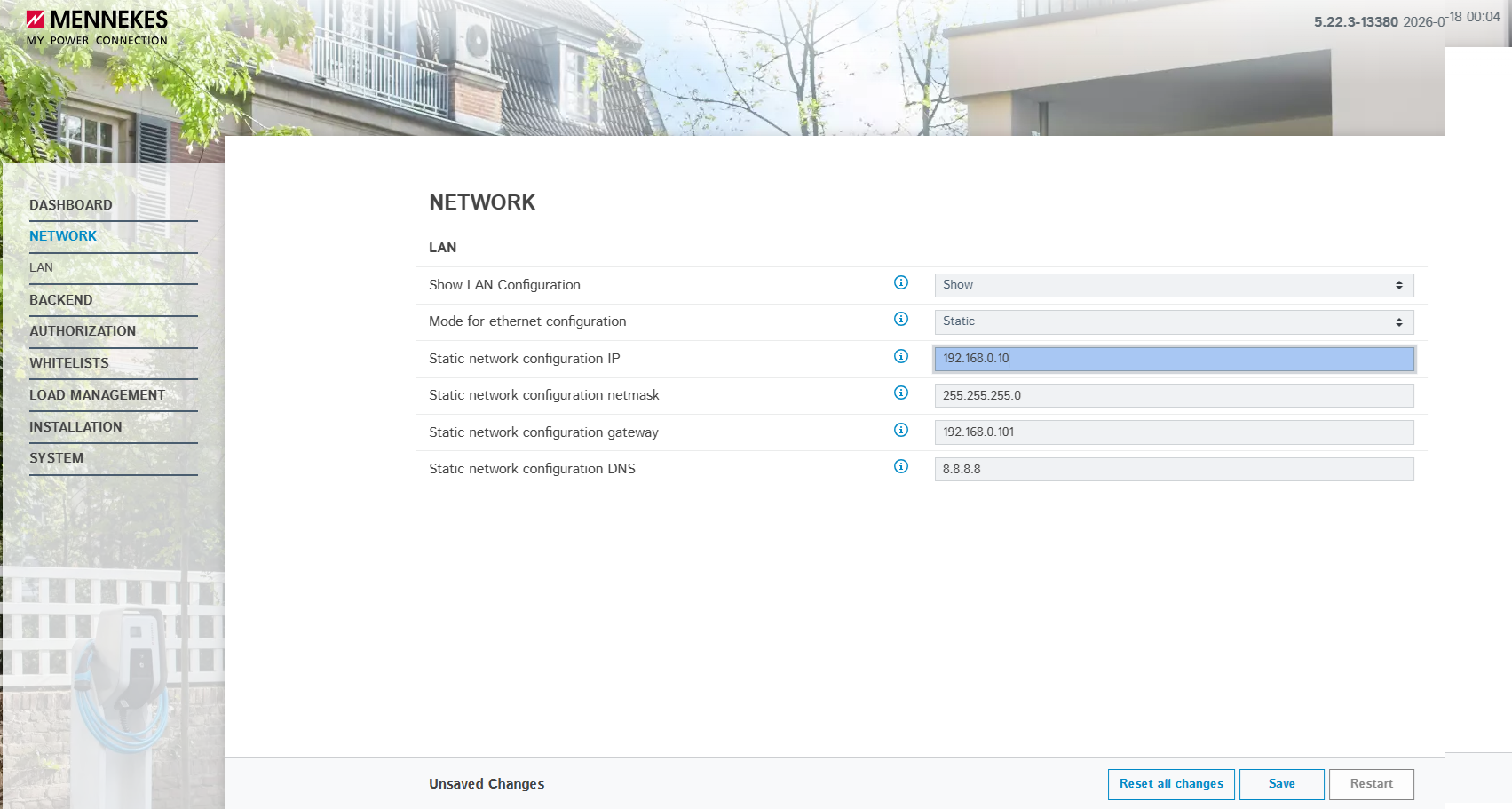
To be able to open the Mennekes charge point web page remotely from the Fuzz Console (see Open the web interface of an asset remotely), give it a fixed IP address: you can then check or change its settings without travelling to the site.
In the NETWORK menu, LAN section:
| Field | Value |
|---|---|
| Mode for ethernet configuration | Static |
| Static network configuration IP | Address reserved for the charge point, for example 192.168.1.21 |
| Static network configuration netmask | For example 255.255.255.0 |
| Static network configuration gateway | The network gateway, for example 192.168.1.1 |
| Static network configuration DNS | The network DNS |
Click Save, then restart the charge point. The values are to be obtained from the network administrator of the site.
Resources: Mennekes configuration and installation videos.