🔌 Configure an EN+ charge point
EN+ charge points (Argo, Caro, VITA) are configured from their local web page, reachable by connecting to the charge point's Wi-Fi (AP mode, access point mode). This page lists the fields to fill in so that the charge point connects to Fuzz over OCPP 1.6 JSON. The general rules are in OCPP configuration of charge points.
✅ Prerequisites for an EN+ charge point
- A smartphone or a PC with Wi-Fi, near the charge point.
- The charge point's PIN code, given on the last page of its manual.
- The EN+ manual for connecting in AP mode: AP Mode Configuration Guide (Argo).
- In the Console, the station and its charge points created on the site. The OCPP identity of an EN+ charge point is always its serial number (SN), which the charge point automatically adds at the end of the URL: enter this number (for example
SN10052511130009) in the station's Serial number field (see Charge point identity). - The site's OCPP URL without the last part:
ws://<controller-ip>:8080/ocpp16/<siteUid>(Edge site), for examplews://192.168.1.10:8080/ocpp16/t1d1vauf.
🛠️ Enter the OCPP server address on an EN+ charge point
- Restart the charge point so that it activates its Wi-Fi.
- Connect to the charge point's Wi-Fi: its name is the charge point's serial number (see the EN+ AP Mode Configuration Guide manual).
- Open the charge point's web page at https://192.168.1.4 and enter the charge point's PIN code.
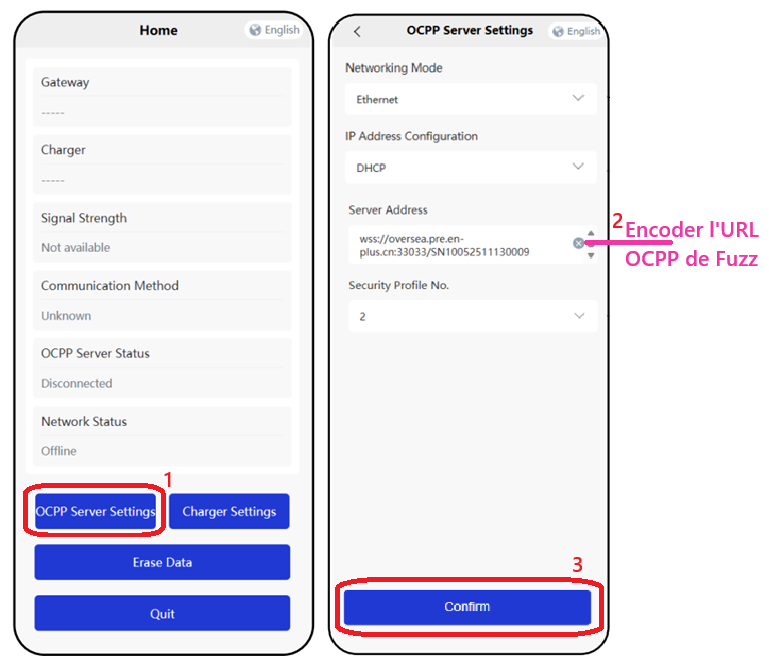
- On the Home page, press OCPP Server Settings.
- Fill in:
| EN+ field | Value |
|---|---|
| Networking Mode | Ethernet (or the connection mode used by the charge point) |
| IP Address Configuration | DHCP, or a fixed address if you want to open its web page remotely |
| Server Address | The Fuzz OCPP URL without the charge point's identity: ws://192.168.1.10:8080/ocpp16/t1d1vauf. The charge point adds its serial number to it |
| Security Profile No. | A profile without password or certificate: Fuzz does not ask for any on the private URL |
- Press Confirm.
Then check in the Console that the charge points change to Online (see Check that the charge point is connected). The OCPP Server Status field of the charge point's Home page also indicates whether the connection to the server is established (Disconnected as long as it is not).