🔌 Configure an Alfen charge point
Alfen charge points (ProLine, SLine) are configured with Alfen's ACE Service Installer tool, installed on a PC. This page lists the fields to fill in so that the charge point connects to Fuzz over OCPP 1.6 JSON. The general rules (private or public URL, charge point identity) are in OCPP configuration of charge points.
✅ Prerequisites for an Alfen charge point
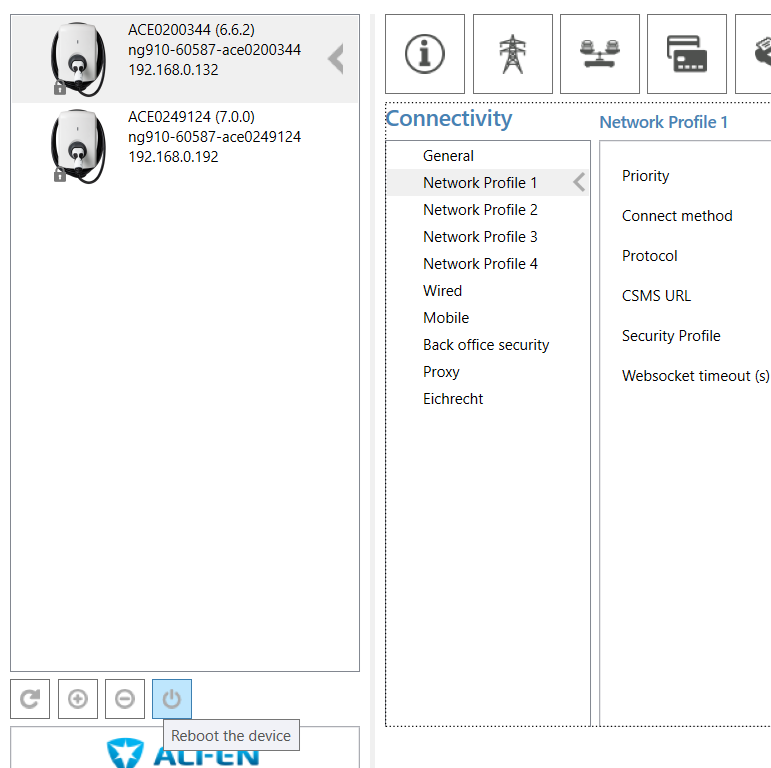
- Charge point firmware: 7.1.6 or newer. Older versions may have incompatibilities with the OCPP behaviour Fuzz expects. To update the firmware, see the Alfen documentation. The version is shown in ACE Installer, next to the charge point number (for example
ACE0012345 (6.6.2)). - A PC connected to the same network as the charge point (Ethernet or Wi-Fi).
- The ACE Service Installer software supplied by Alfen: download ACE Service Installer.
- In the Console, the station and its charge points created on the site, with the matching Alfen model (for example Alfen-SLine) in the Charge point protocol step.
- The site's OCPP URL:
ws://<controller-ip>:8080/ocpp16/<siteUid>for an Edge site (private URL without the last part, see Charge point identity).
1. Connect to the charge point and note its identity
- Open ACE Installer and sign in with the Alfen installer account:
- User:
Post - Password:
prEze8
- User:
- Connect to the charge point. If the charge point's password is requested and unknown, use the Alfen card supplied with the charge point: see the Alfen password reset procedure.
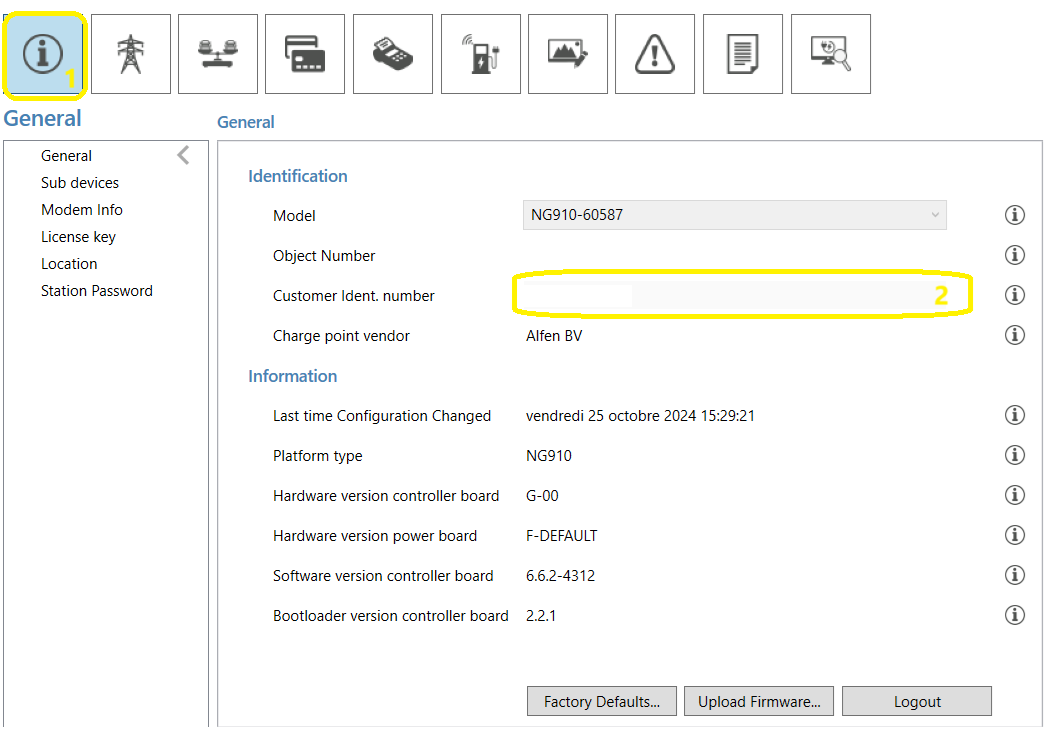
- Open the General tab ("i" icon), Identification section, and note (or change) the Customer Ident. number field, for example
ACE0012345. It is the charge point's OCPP identity: Alfen automatically adds it at the end of the server URL. - In the Fuzz Console, enter this value in the station's Serial number field (site topology, the charge point's station). Fuzz then recognises the charge point when it connects.
2. Enter the Fuzz OCPP server address
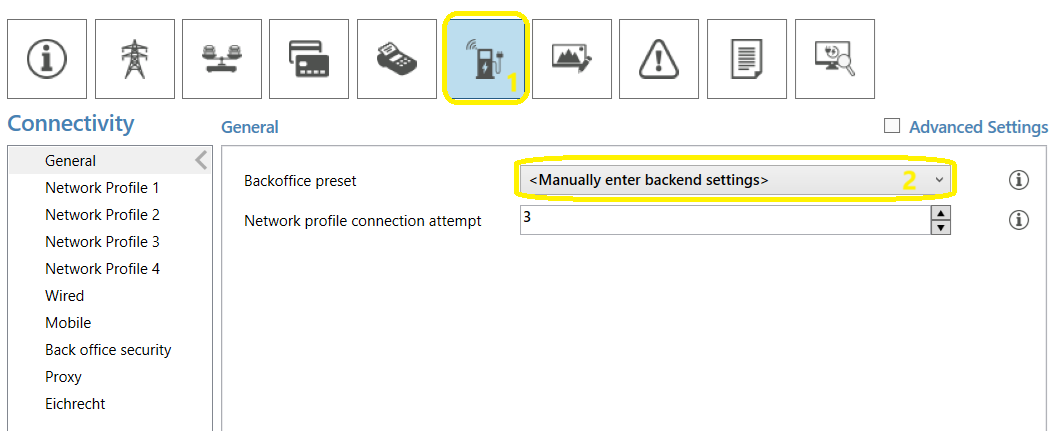
- Open the Connectivity tab (charge point icon with antenna), General section.
- In Backoffice preset, choose
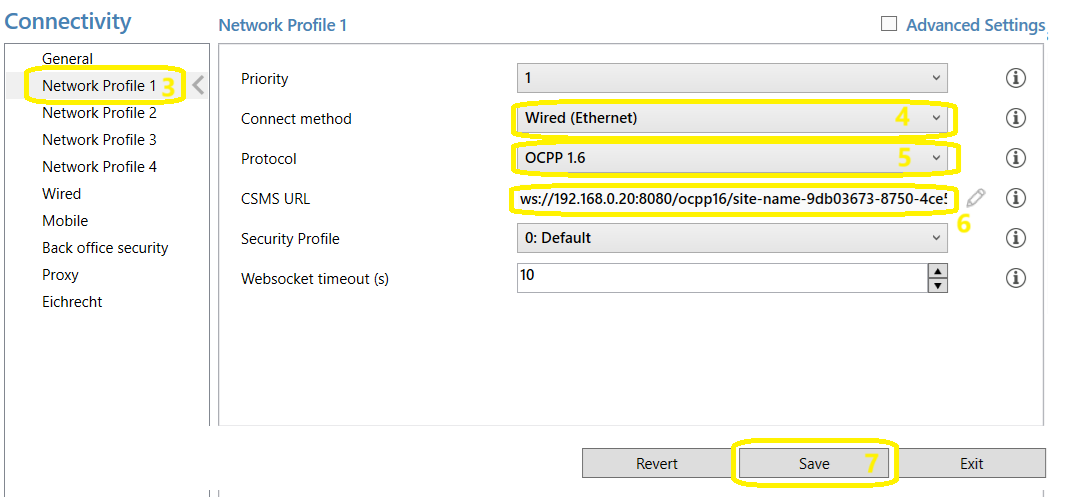
<Manually enter backend settings>. Leave Network profile connection attempt at its value (for example3). - Open the Network Profile 1 section and fill in:
| ACE Installer field | Value |
|---|---|
| Priority | 1 |
| Connect method | Wired (Ethernet) (or the method used by the charge point) |
| Protocol | OCPP 1.6 |
| CSMS URL | The Fuzz OCPP URL without the charge point's identity, for example ws://192.168.1.10:8080/ocpp16/t1d1vauf (Edge site) or wss://ocpp.fuzz.energy/<secret key>/ocpp16/t1d1vauf (connection over the Internet) |
| Security Profile | 0: Default |
| Websocket timeout (s) | 10 (default value) |
- Click Save.
⚠️ Save the configuration at each step with Save before moving to the next section.
3. Restart the charge point and check
- Restart the charge point: in ACE Installer, select the charge point in the list on the left and click the Reboot the device button (power icon), or switch the charge point's circuit breaker off and on again.
- After the restart, check in the Console that the charge point's charge points change to Online in Assets (see Check that the charge point is connected).
If the charge point stays offline: check that the Customer Ident. number is identical to the station's Serial number in Fuzz, that the CSMS URL does contain ocpp16 and the site identifier, and that the controller has a fixed IP address.